Microsoft 365
Setting up SAML authentication in Microsoft 365 requires use of Azure Active Directory.
Azure Active Directory Set Up
- Go to the Microsoft 365 Admin console and log in with an admin account.
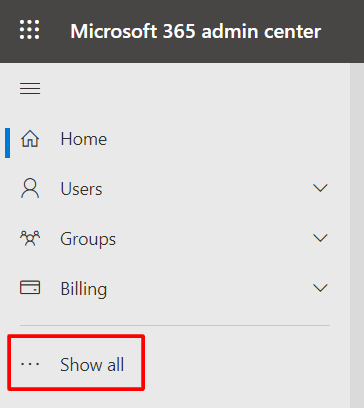
- Click on 'Show all' in the sidebar, and then on 'Azure Active Directory'.
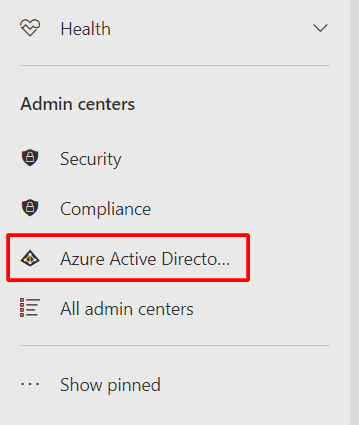
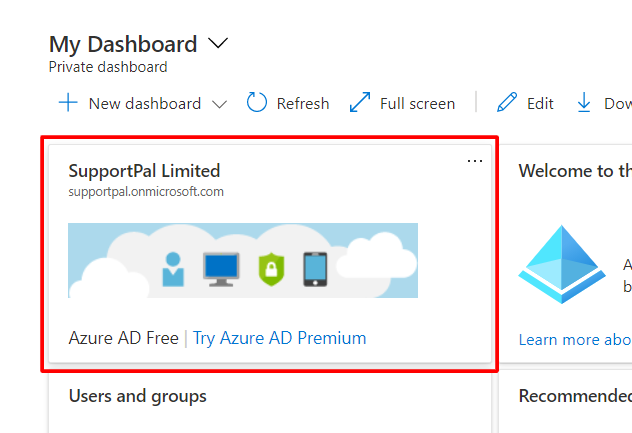
- The Azure Active Directory admin center will show. Click on your company name in the dashboard.
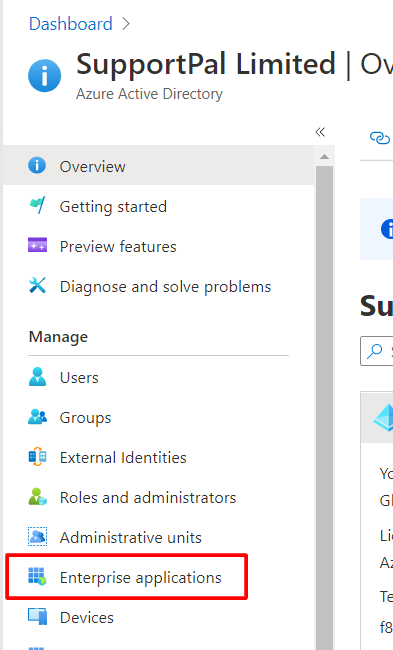
- Click on 'Enterprise applications' in the sidebar.
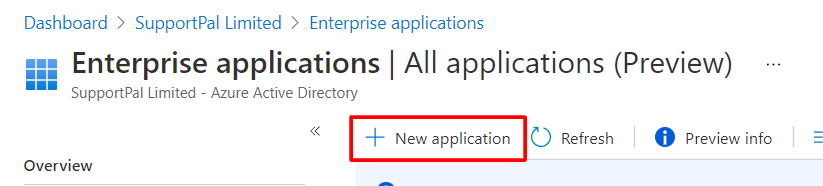
- Click 'New application', type 'SAML toolkit' in the search, and select 'Azure AD SAML Toolkit'.
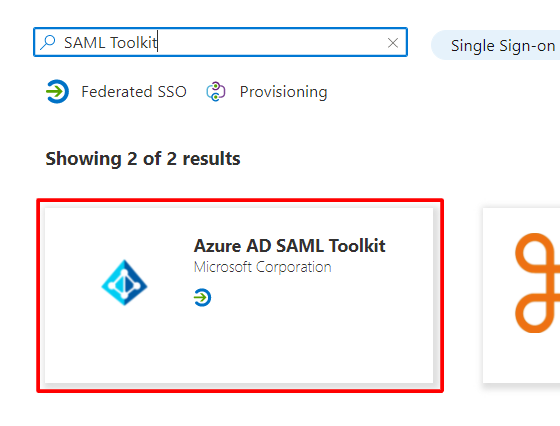
- Set the name to 'SupportPro SAML' and click 'Create'. Wait until the page reloads and the application has been created.
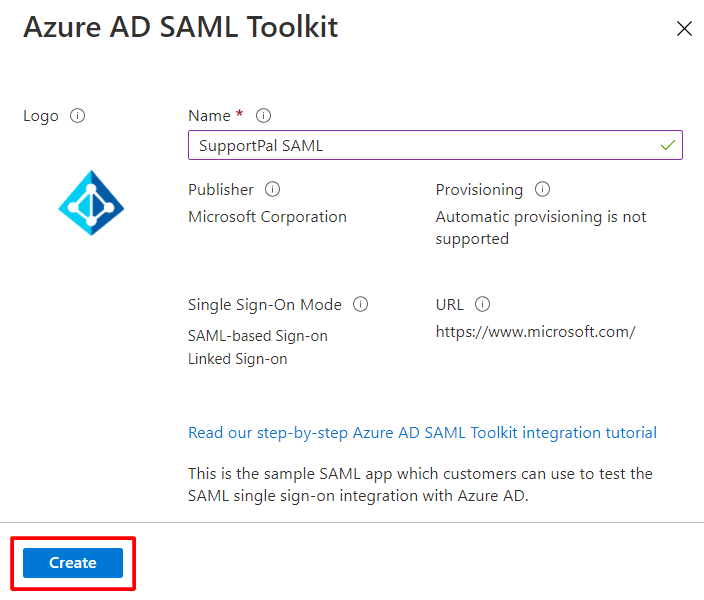
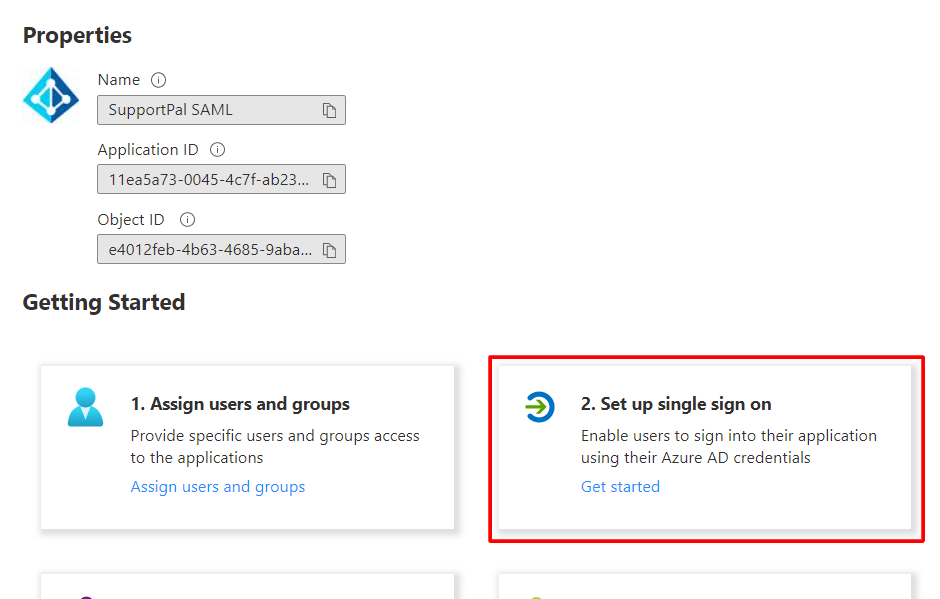
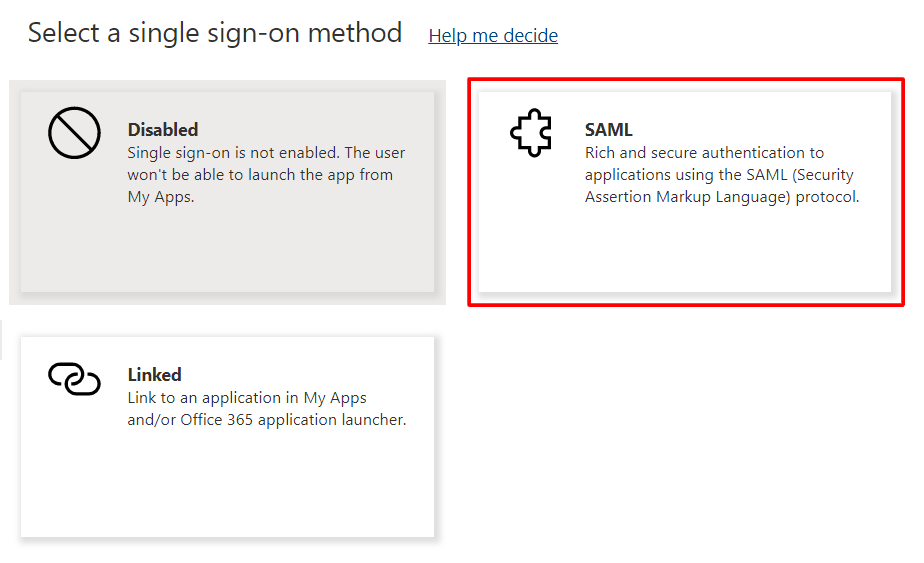
- Click on the 'Set up single sign on' and choose the 'SAML' option.
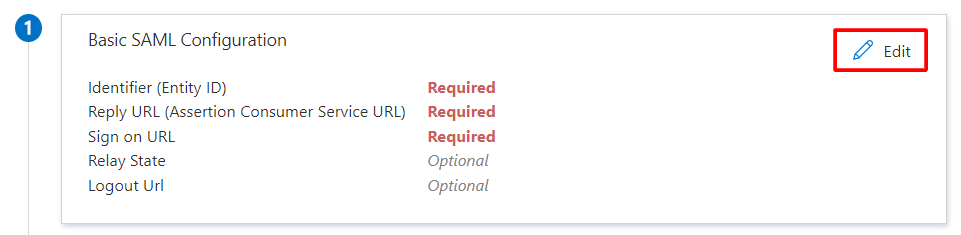
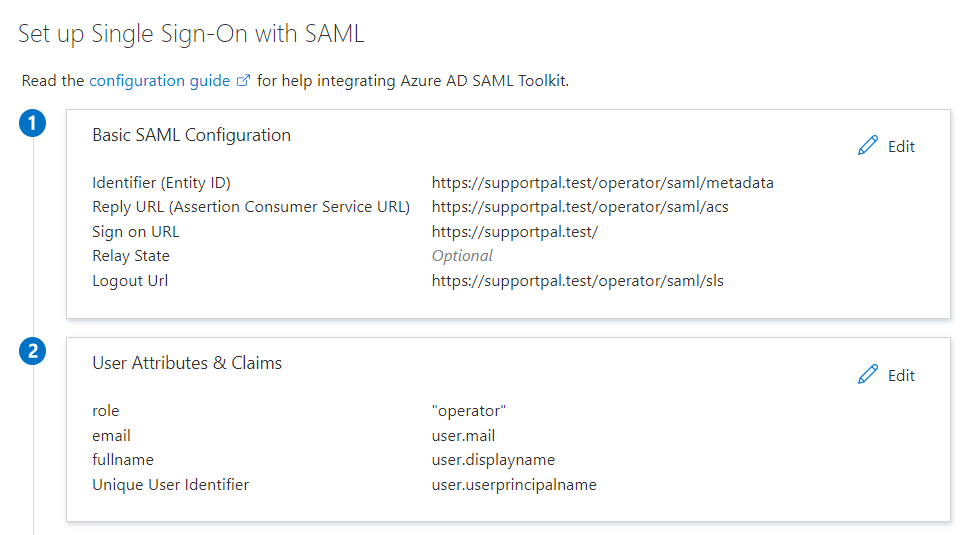
- Click 'Edit' in the Basic SAML Configuration area. Set the text boxes like shown and set the relevant options as default, replacing the start of the URL with your help desk URL. To use this on the frontend (for users), replace 'operator' with 'frontend'. Click 'Save' once all the fields have been set.
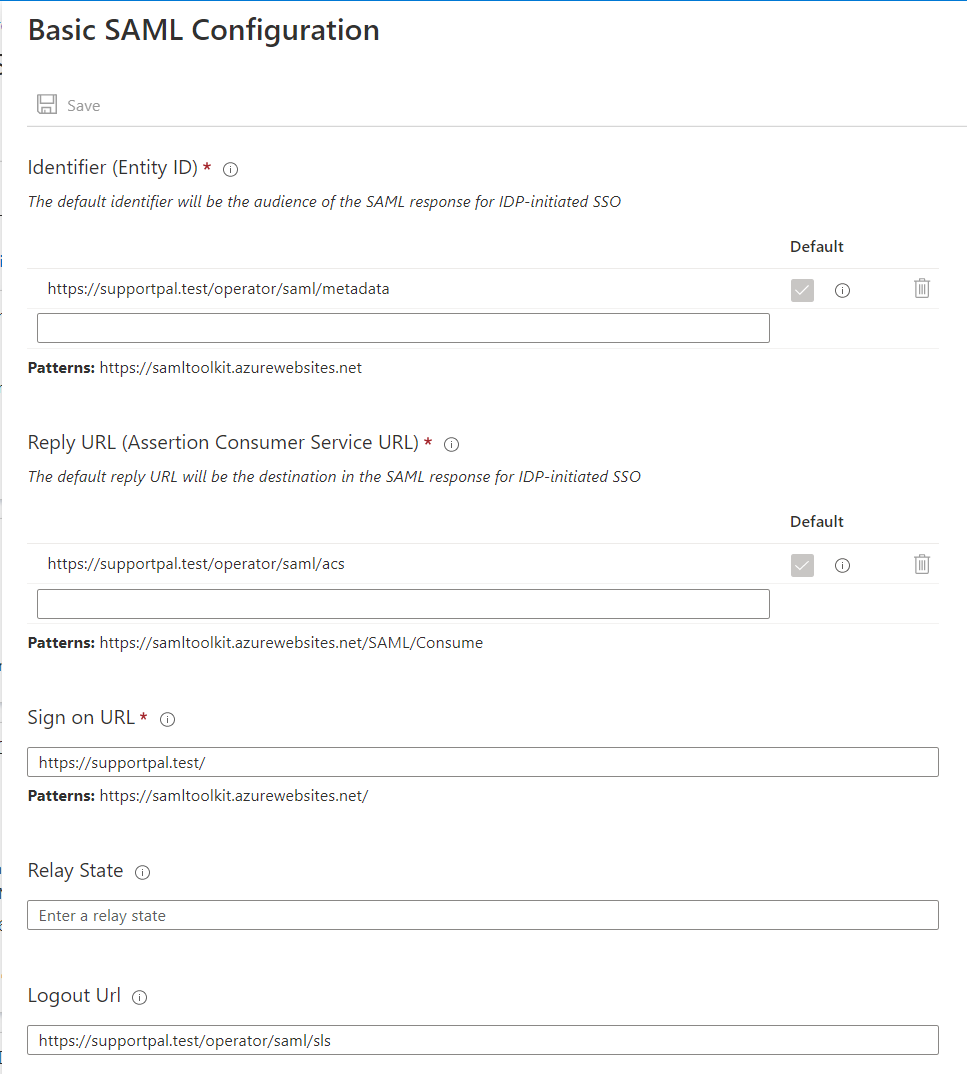 If you have more than one brand in SupportPro, and users access the helpdesk using different URLs, you will have to set the relevant URLs for each brand individually.
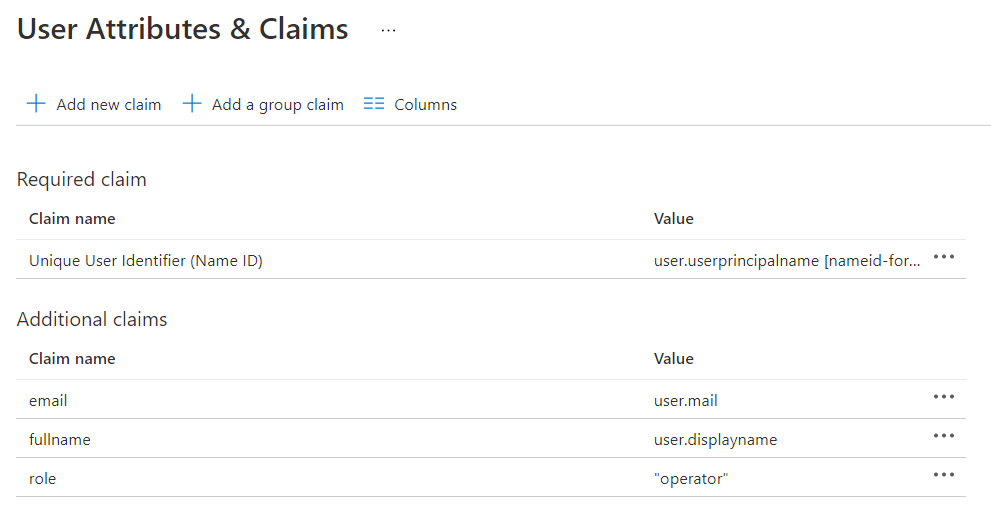
 - Next click 'Edit' in the User Attributes & Claims area. Delete the existing claims and create new claims like shown. The 'role' claim can be ignored if using on the frontend, and additional claims can be configured as per our documentation.
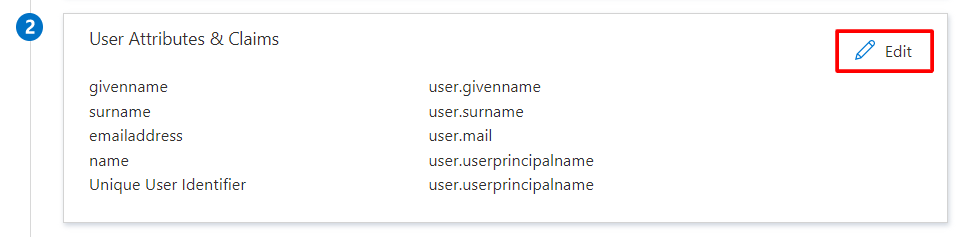
- Once all that is done, your configuration should look like this:
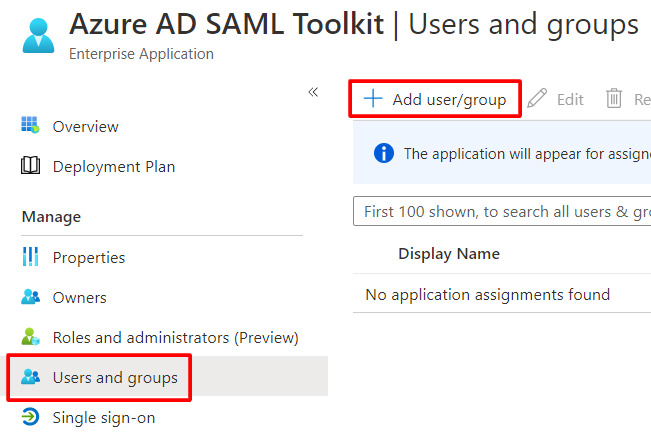
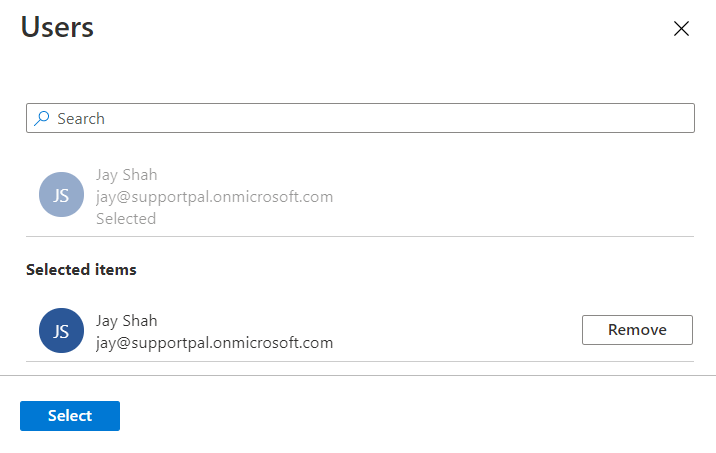
- Finally, click 'Users and groups' in the sidebar, then click 'Add user/group'. Select all users that you would like to be able to login using SAML, leaving the role as 'Default Access', and click 'Assign'.
SupportPro Configuration
- Create the file
/config/production/saml.phpin your SupportPro installation as below.config/production/saml.phpIf you wish to use it on the frontend, you can change the file as per our documentation. - Update the
'idp'configuration inconfig/production/saml.phpusing the details from the 'Set up Azure AD SAML Toolkit' section: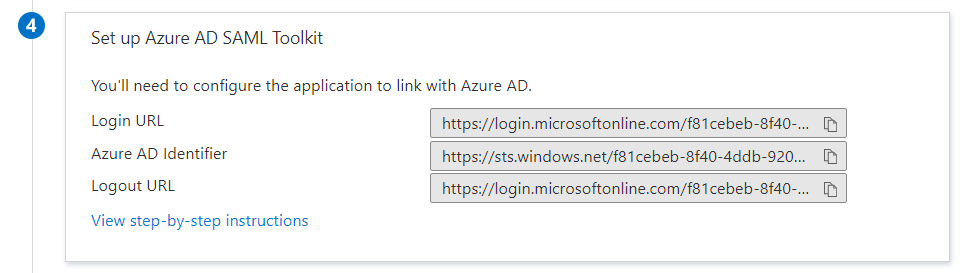
- For the
entityIDvalue, use theAzure AD Identifiervalue. - For the
singleSignOnServicevalue, use theLogin URLvalue. - For the
singleLogoutServicevalue, use theLogout URLvalue.
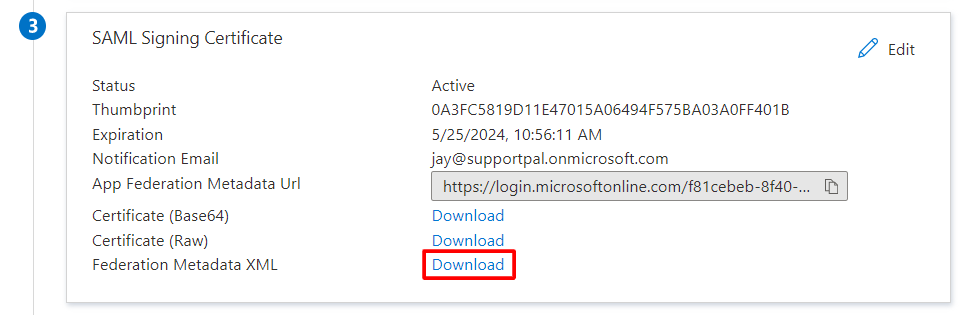
For thex509certvalue, download the Federation Metadata XML and copy the value of theX509Certificatefrom this file. - For the
- Create a signing certificate for SupportPro using
openssl:openssl req -x509 -nodes -sha256 -days 730 -newkey rsa:2048 -keyout samlcert.key -out samlcert.pem - Update
config/production/saml.php:- Replace
X_PASTE_SUPPORTPro_SIGNING_CERT_HEREwith the contents ofsamlcert.pem - Replace
X_PASTE_SUPPORTPro_SIGNING_CERT_PKEY_HEREwith the contents ofsamlcert.key
- Replace
- The configuration is complete - verify by logging in with the 'Microsoft 365' button as a user that you assigned earlier to the application.
- To force use of SAML over the normal login, change the
dualLoginvalue tofalse.
Article Number: 247
Author: Jul 22, 2024
Last Updated: Jul 22, 2024
Online URL: https://docs.supportpro.vn/article/microsoft-365-247.html