Google Suite
1. Add SupportPro user attributes to Google Suite
- Go to the Google Admin console
- Choose Users from the hamburger menu in the top left
- Once at the users screen, click the Manage user attributes button in the upper right
- A modal will appear, click Add Custom Category
- Enter the desired name (eg. Helpdesk, SupportPro)
- Add an attribute for each of the SAML attributes in the SupportPro documentation that you wish to use. The attributes can have friendly names here, and do not need to match the system name.
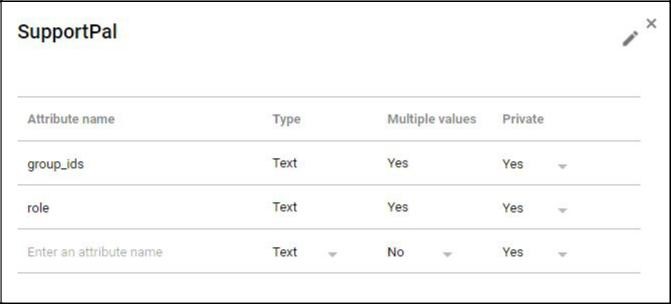
- Update your individual user accounts, populating the new attribute fields as appropriate.
Custom attributes can also be added easily using Google's APIs instead of the Admin Console.
2. Add a SupportPro SAML App to Google Suite
- Choose Apps from the hamburger menu in the top left
- Click SAML Apps
- Click the + button in the bottom right to add a new SAML application
- Click on Setup my own custom app from the modal
- Copy the
SSO URLandEntity IDprovided, and download the certificate file - Click on Next, and enter the application name (eg. SupportPro)
- Check Signed response
- Enter the
ACS UrlandEntity IDthat corresponds to your SupportPro installation, see: SAML Service Provider - In the Name ID section, choose
Basic Information, and thenPrimary Email - For the Name ID Format, select
EMAIL, then click Next - Click Add new mapping, and in the left column, enter the name of each of the SupportPro SAML attributes that you wish to use
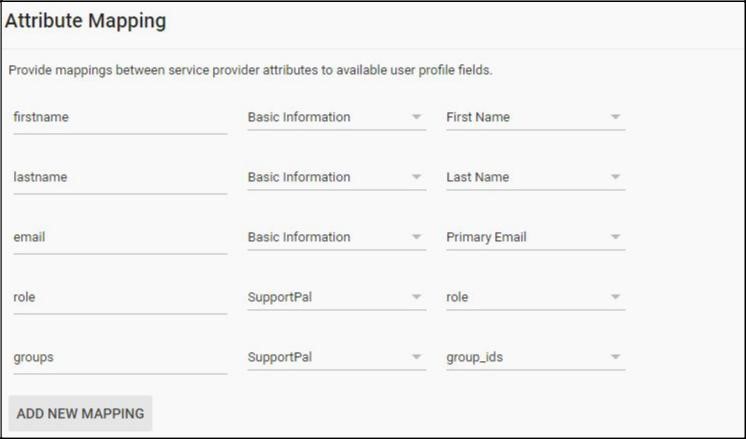
- In the right columns, choose the corresponding categories and fields from the Google user attributes
- Click Finish
3. Update the SupportPro configuration
- Create the file
/config/production/saml.phpin your SupportPro installation, according to the documentation. - Fill out the IdP configuration:
- For the
entityIDvalue, use theEntity IDprovided earlier by Google. - For the
singleSignOnServiceurl value, use theSSO URLprovided earlier by Google - Because Google Suite do not support the singleLogoutService mechanism, for the
singleLogoutServiceurl value, you can usehttps://accounts.google.com/logout, which will ignore any posted data and logout the entire Google account when the user chooses to logout of SupportPro. - For the
x509cert, paste the certificate that you downloaded earlier from Google.
- For the
If you have more than one brand in SupportPro, and users access the helpdesk using different URLs, you will have to create a SAML App in the Google Admin console for each brand individually.
Article Number: 245
Author: Jul 22, 2024
Last Updated: Jul 22, 2024
Online URL: https://docs.supportpro.vn/article/google-suite-245.html